Course Alert
Features Description
This plugin introduces a new notification feature to automatically send custom reminders for courses:
- Login Reminder: user has not begun the course X days after enrolling
- Completion Reminder: user has not completed the course X days after the first access
- Course Closing reminder: user has not completed the course X days before the course end date (if set)
- Course Completed: When a user completes the course, they automatically receive a notification confirming their course completion
Each reminder can be activated separately for each course.
For each reminder, it will be possible to set a standard text or a custom notification text and scheduling.
Cron Job
To allow the system to properly work you need to set up a cron job on your server calling periodically (i.e every 10 minutes) the following URL:
[platform_url]/plugins/CourseAlert/Cron/cron.coursealert.php
Reminders activation and settings
The course alert function is available for every course. From the course management page, just click on the new envelope icon to access the configuration panel:
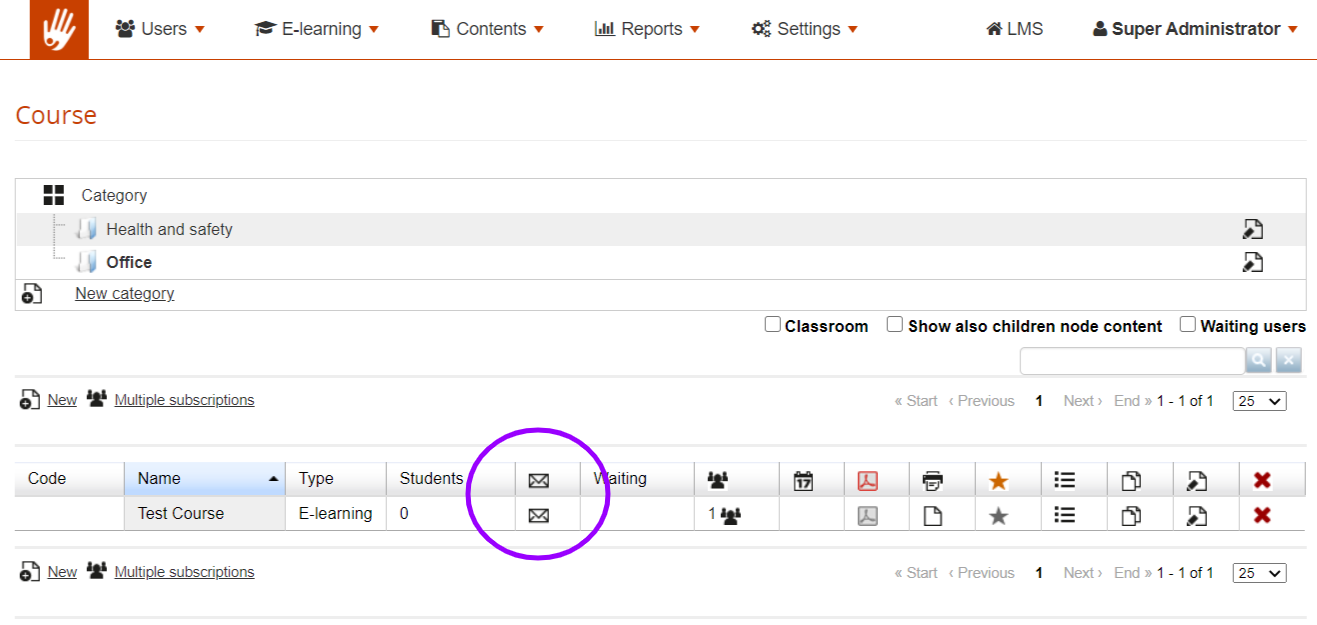
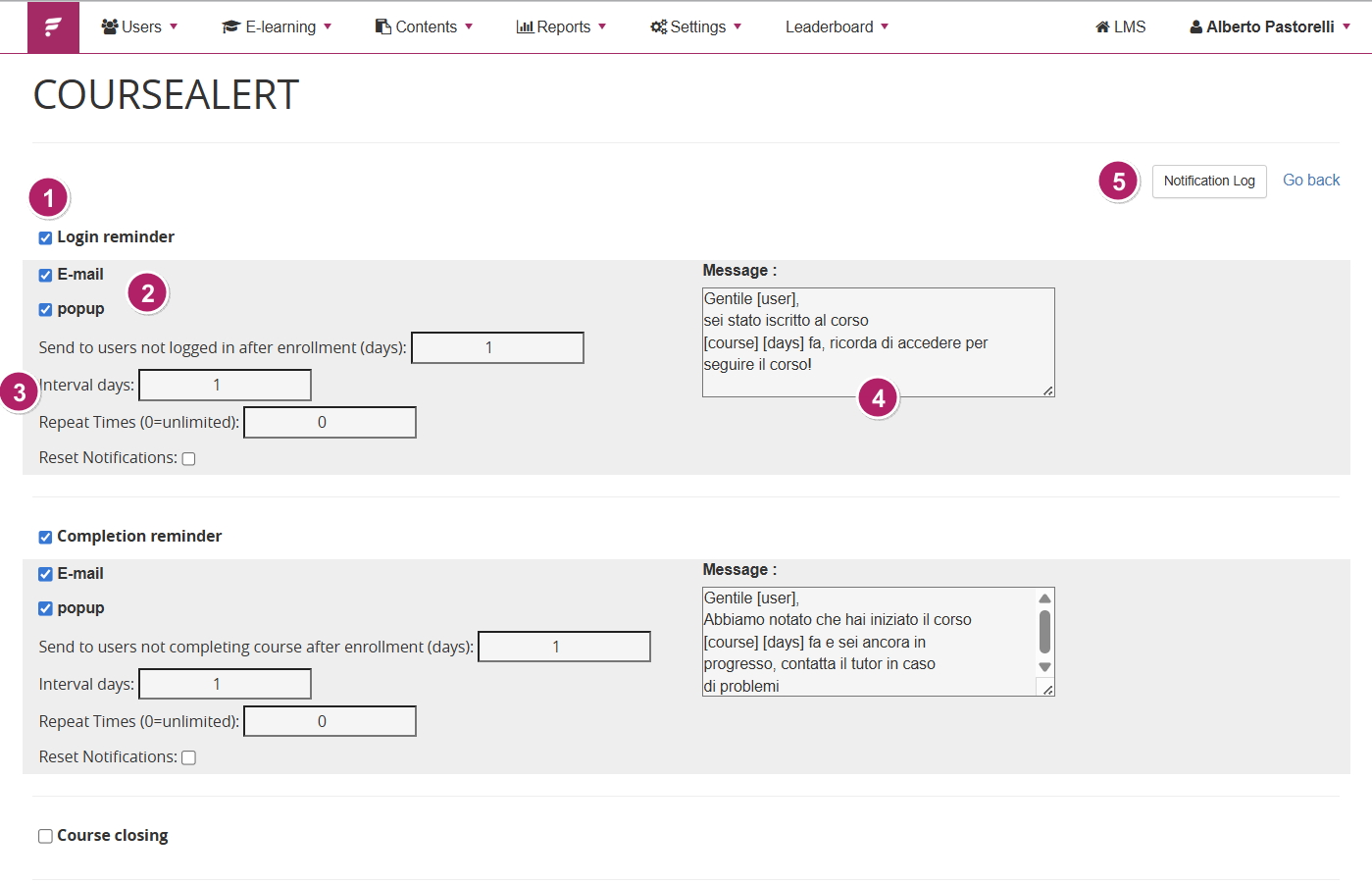
This will open a configuration panel where you’ll be able to:
- Select one or more reminder for each course
- Define to send them by e-mail and/or popup the message upon user login
- Time Settings:
- Define how many days after or before the “trigger” your reminder should be sent.
- Interval: how many days to wait before resending the notification
- Repeat: how many times the alert will be sent/shown to the user
- Reset: flag to rest upon saving the settings. All the notifications for this alert will be sent again.
- Set a custom notification text
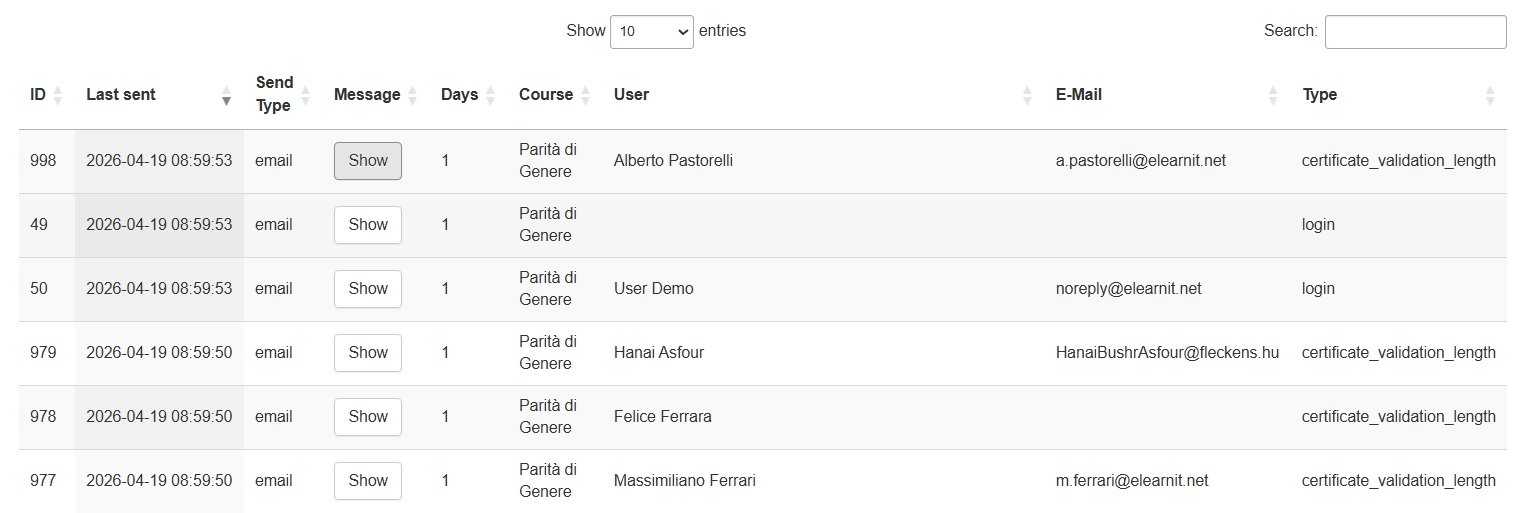
- Notification Log: see a log of all the notifications sent to users in this course
Notification text customization
Writing a custom message
The message field for each notification displays a default text: just click on the text area and start writing to enter a custom text.
Conventional HTML tags can be used for text formatting.
DynamicTags
The following dynamic tags are available to customize your Course Alert notification text:
- [user]: will print the name of the user receiving the notification
- [course]: displays the course title
- [days]: displays the number of days as set in the notification settings
Edit the default message
The default text message can be edited through the standard Forma language management features
Time Settings
Interval days
The Interval days parameter controls the minimum gap between two consecutive displays of the same pop-up to the same user. For example, with Interval days = 3, after clicking "Remind me later" the user will not see that pop-up again for at least 3 days. Setting Interval days = 1 means the pop-up can reappear on the following day's first login
Repeat days
Indicates how many times the alert should be re-proposed.
Note: By entering a value of 0, the system will continue to show the pop-up or send the email indefinitely until the required action is completed.
Reset Notifications
The Reset Notifications checkbox is available for each alert type in the configuration panel.
When this checkbox is selected and the configuration is saved, the system deletes the notification history (send log) for that alert type on the selected course. This means:
All users who had previously received this alert — including those who had reached the maximum number of repetitions — will be eligible to receive it again.
The repetition counter (sent_times) is cleared for all users associated with this course and alert type.
The alert cycle restarts from scratch as if no notification had ever been sent.
This is useful, for example, after updating the course content or extending the course deadline, when it makes sense to re-notify users who had already been informed.
Note: Reset Notifications only affects the selected alert type for the selected course. Other alert types and other courses are not affected.
Pop-Up Alert
Notification Log