
Extended Domain Settings
Overview
The Domain Config plugin is an advanced tool for multi-domain management of the e-learning platform. It allows you to configure and manage multiple platform instances under different domains, each with their own customized settings.
Main Features
Domain Management
• Multi-domain configuration: Management of multiple simultaneous domain profiles
• Custom templates: Assignment of specific templates for each domain
• Organizational node configuration: Association of specific organizational structures
• Dedicated email profiles: Email profile configuration for each domai
Technical Features
• Centralized management of all configurations
• Support for multiple templates
Plugin Configuration
Access to Configuration
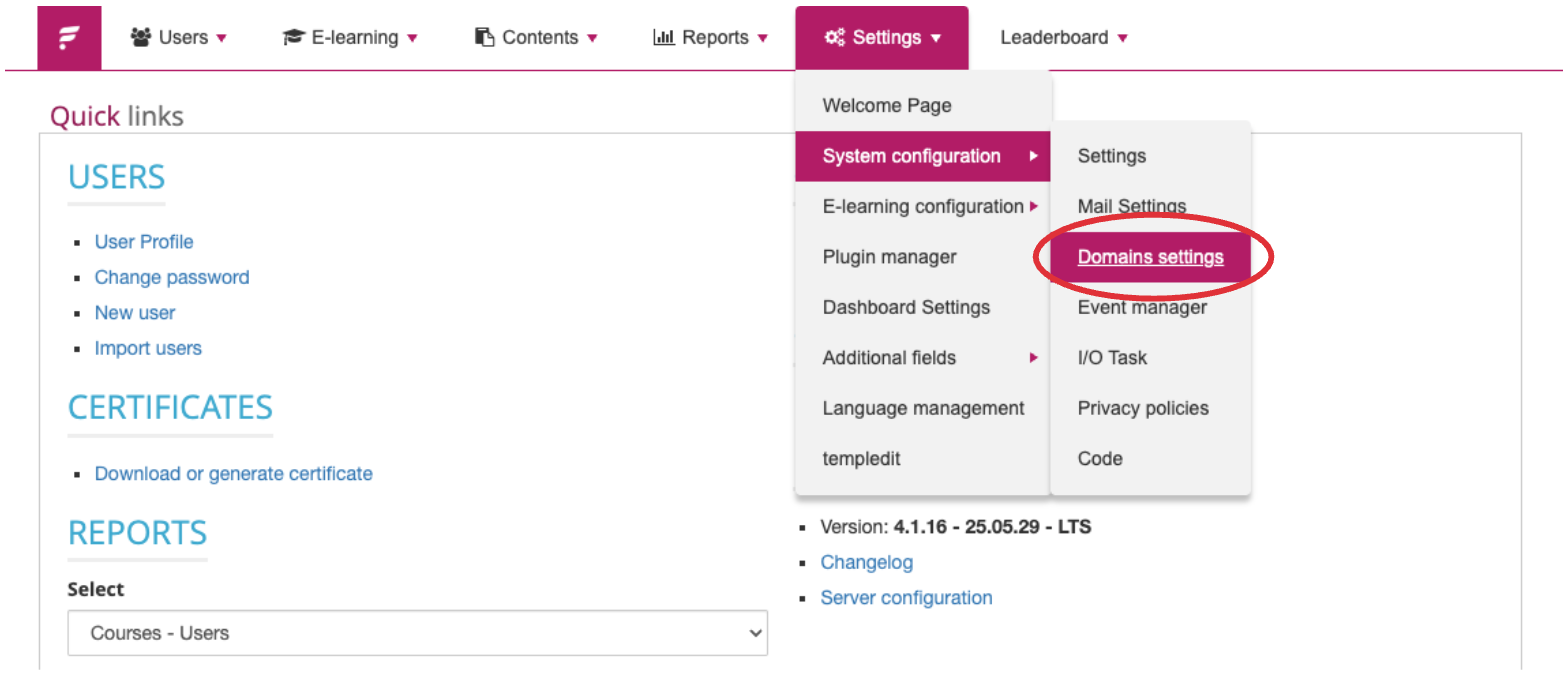
The plugin is accessible through the administration panel:
Access the administrative panel
Navigate to the "System Configuration" section
Select "Domain Settings"
Domain Profile Management
Creating New Profile
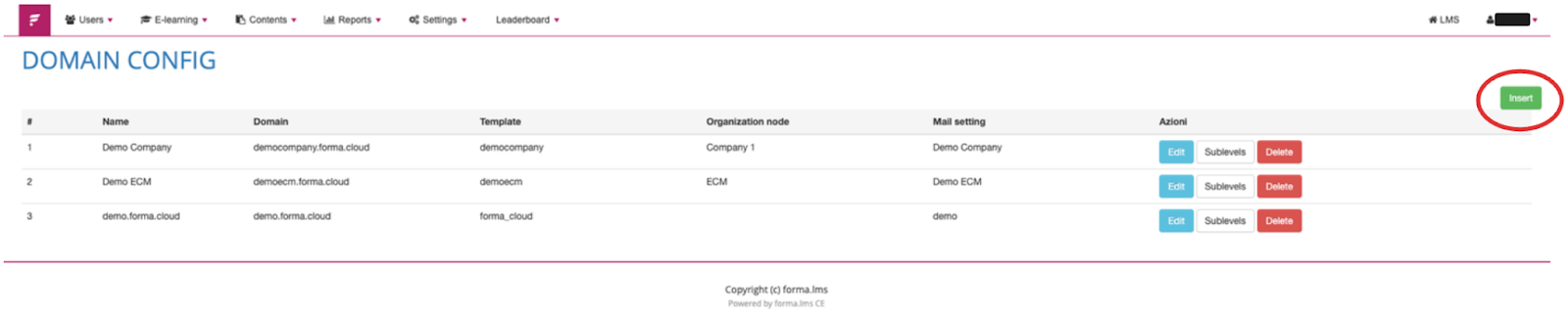
To create a new domain profile:
Click on the "Insert" button (green)
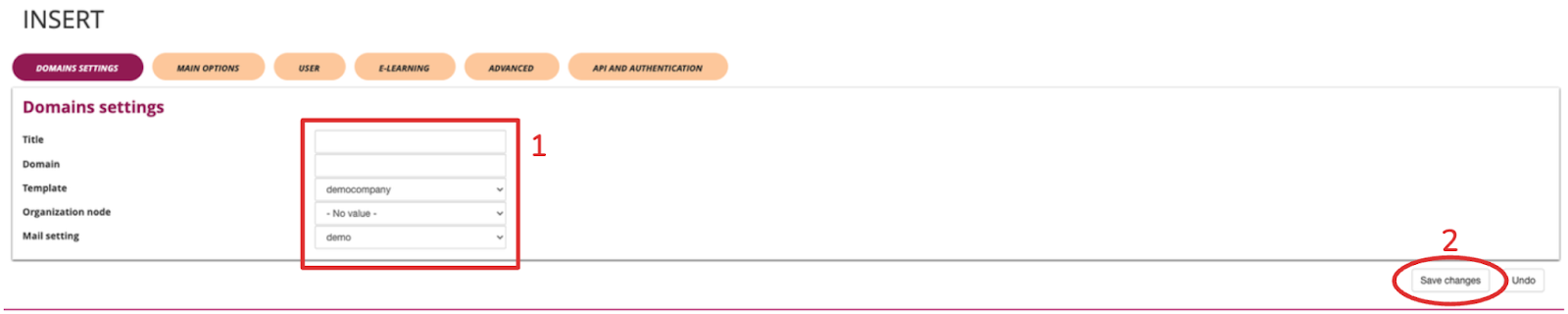
Fill in the required fields:
○ Title: Profile identifier
○ Domain: Complete domain URL
○ Template: Select the appropriate template
○ Organizational node: Associate the organizational structure
○ Mail Profile: Configure email settings
Editing Existing Profile
To modify an existing profile:
Locate the profile in the list
Click on the "Edit" button (blue)
Update the necessary fields
Click "Save changes" to confirm

Profile Deletion
To delete a profile:
Locate the profile in the list
Click on the "Delete" button (red)
Confirm the operation

Advanced Configuration
Domain Settings
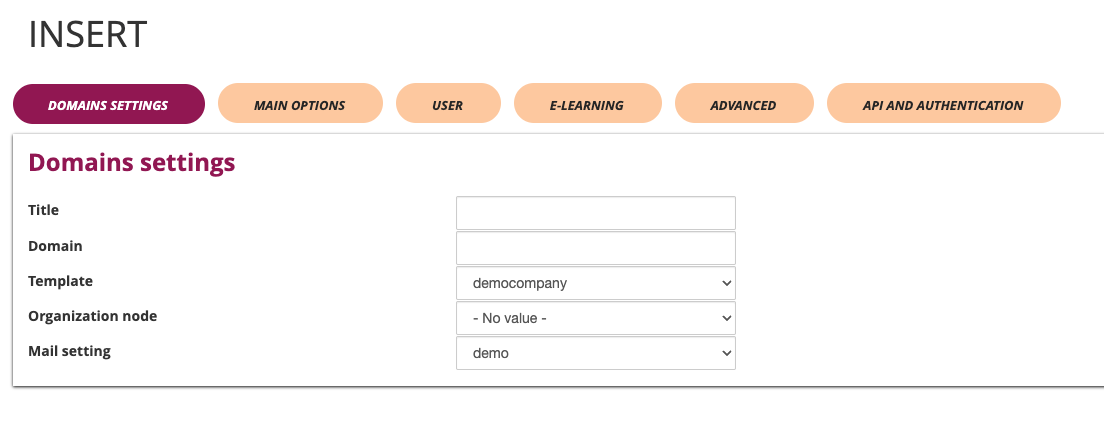
Title and Branding
• Title: Platform name customization
• Domain: Main URL configuration
• Template: Graphic layout selection
• Organizational node: Associated hierarchical structure
• Mail Profile: Specific email configuration
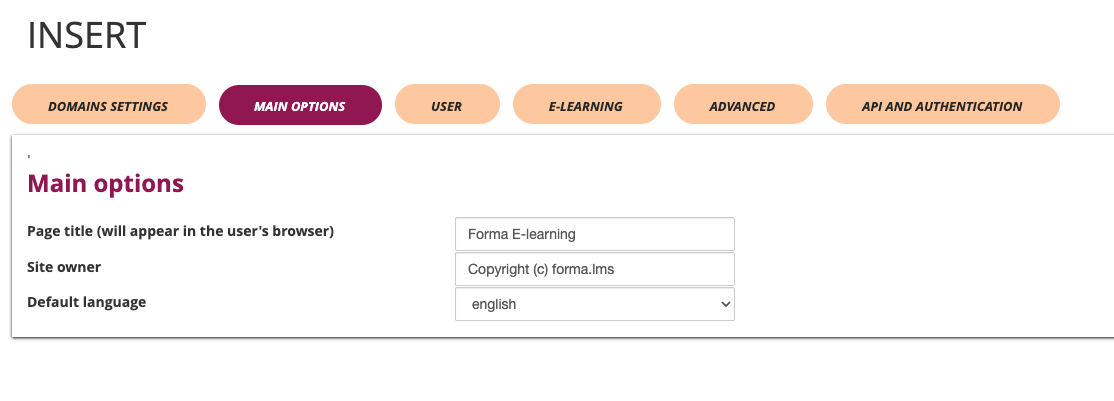
Main Options
Language and Localization
• Default language: Main language selection (e.g., Italian)
• Page title: Browser title customization
• Site properties: Copyright and property information
User Management
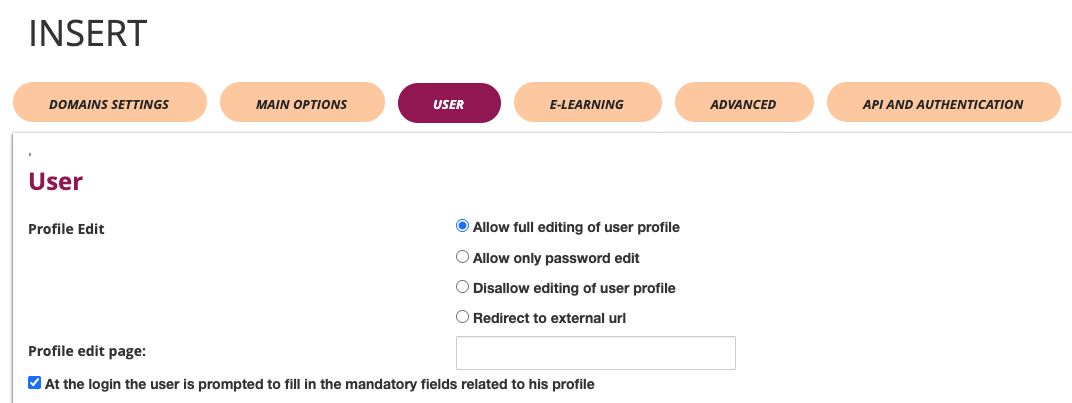
Access Configuration
• Required checkboxes: Definition of mandatory fields for the profile
• Profile edit URL: Configuration path for profile modifications
• Profile edit options:
○ Allow complete modification
○ Allow only password modification
○ Disable profile modifications
○ Redirect to external page
Password Management
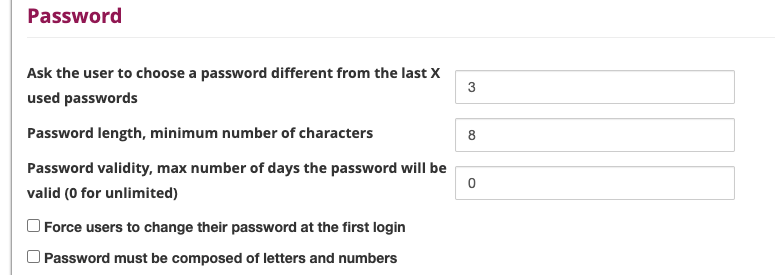
• Password composition: Letters and numbers requirements
• Password history: Number of previous passwords to store
• Minimum length: Required minimum characters
• Password expiration: Days of validity (0 = no expiration)
• Mandatory password change: Force change at first login
User Registration
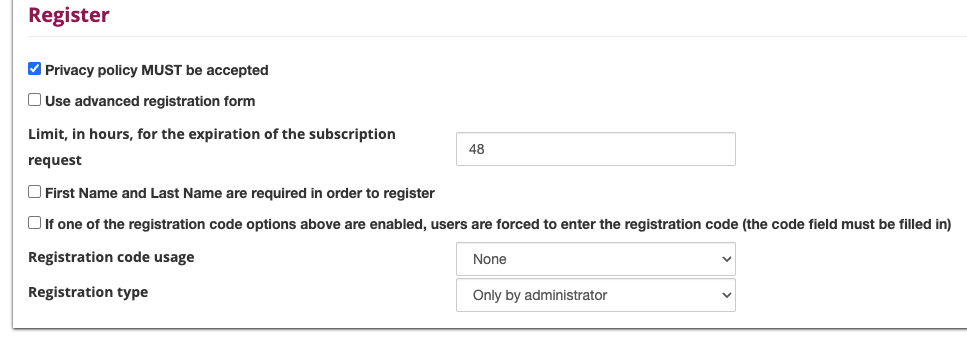
• Registration code: Code usage mode
• Required fields: Name and Surname mandatory
• Advanced mode: Use of advanced registration form
• Time limit: Available hours to confirm registration
• Registration type: Access control (Administrators only/Everyone)
• Privacy policy: Mandatory acceptance
• Registration code: Code activation for specific users
E-Learning
Course Configuration
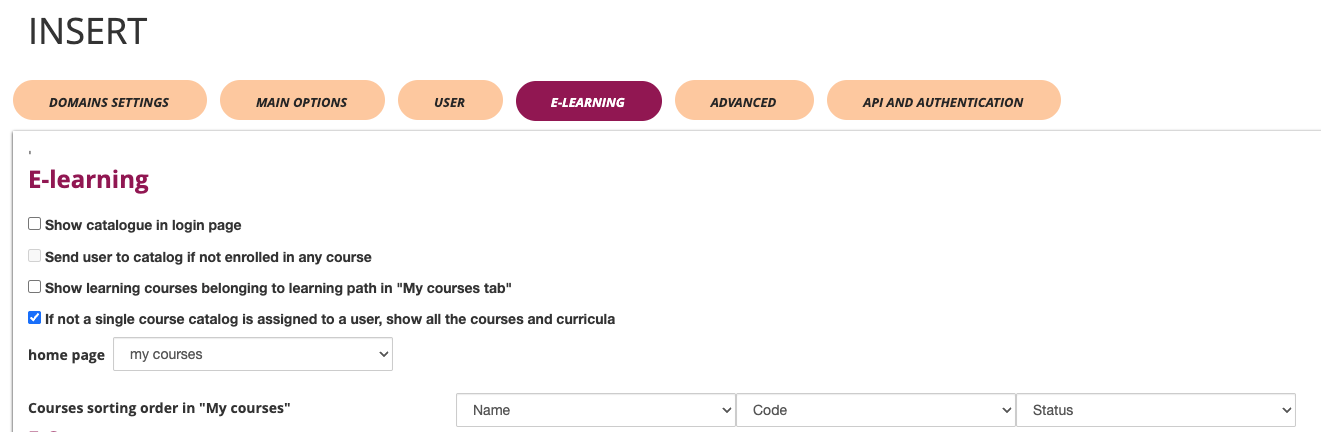
• Course sorting: Display criteria in "My courses" area
○ By Name
○ By Company
○ By Status
• Home page: Initial page selection (Dashboard)
• Course list: Activation on login page
• Course catalog: Display for unassigned users
• Course path: Display in "My courses" tab
• Redirection: Management of users not enrolled in courses
E-Commerce
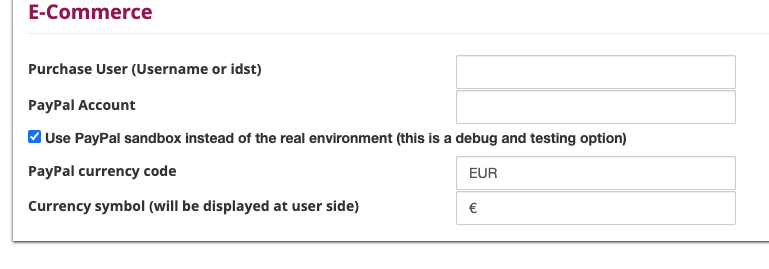
• Purchase notifications: Username or ID configuration for notifications
• Currency symbol: Monetary symbol setting (e.g., €)
• PayPal environment: Sandbox mode for testing or real environment
• PayPal account: Account configuration for payments
• PayPal currency: Currency setting (e.g., EUR)
Advanced Configurations
Google Integration
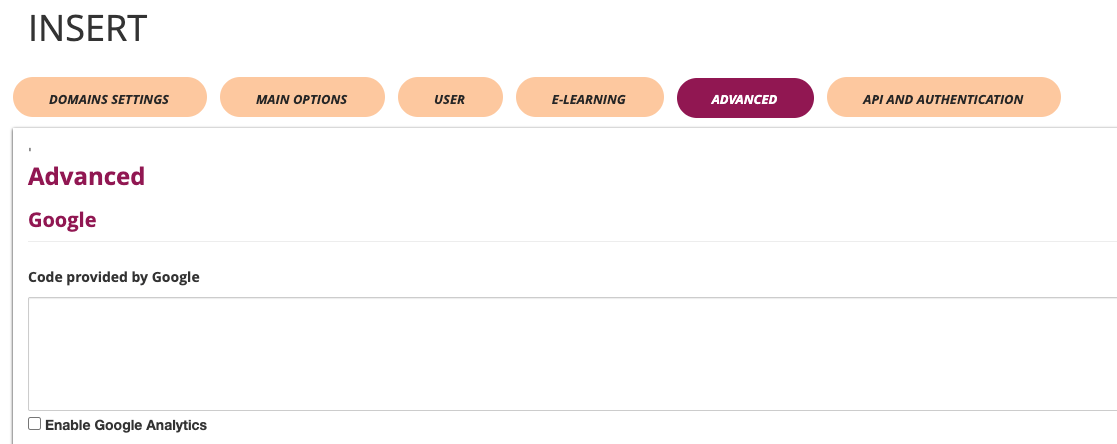
• Google Analytics: Statistics tracking activation
• Google Code: Tracking code insertion
Security Configurations
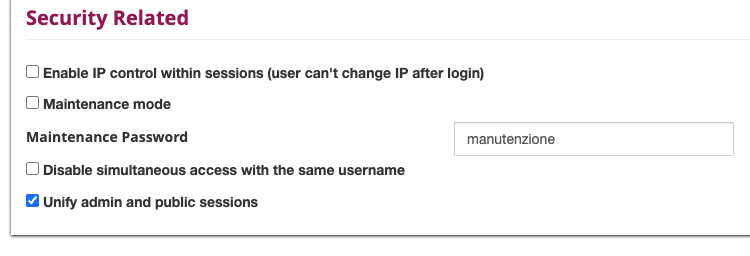
• Simultaneous access: Disabling multiple access for same username
• IP control: IP consistency activation during session
• Maintenance password: Password setting for maintenance mode
• Site under maintenance: Maintenance mode activation
• Administration session: Public session sharing with administration
Operational Usage
Typical Workflow
Domain profile creation
○ Define identifying name
○ Configure target domain
○ Select appropriate template
○ Associate organizational node
○ Configure email profile
Options configuration
○ Set language and localization
○ Define user and password rules
○ Configure registration
○ Customize e-learning area
Advanced configurations
○ Integrate Google Analytics if necessary
○ Configure security
○ Set up e-commerce if applicable
Saving and activation
○ Save all changes
○ Test the configuration
○ Activate the domain
Best Practices
Naming Convention
• Use descriptive names for profiles (e.g., "PROFILE-1")
• Maintain consistency in nomenclature
• Include client or project references
Template Management
• Use dedicated templates for each client
• Test templates before activation
• Maintain backups of custom templates
Security
• Set complex passwords for maintenance
• Configure IP controls when necessary
• Use sandbox environment for e-commerce testing
Troubleshooting
Common Problems
Domain Not Reachable
• Verify DNS configuration
• Check URL correctness in domain field
• Verify server accessibility
Template Not Displayed
• Check template existence in system
• Verify template file permissions
• Verify correct template-domain association
Email Problems
• Verify mail profile configuration
• Check SMTP parameters
• Test email sending from configured profile