
Extended Domain Settings
The "Extended Domain Settings" plugin is an advanced tool for multi-domain management of the e-learning platform. It allows you to configure and manage multiple platform instances under different domains, each with their own customized settings.
The plugin extends the standard domain settings with most of the options you have for the global platform configuration, this way each domain will behave as an independent platform. For each of your client you will be able to setup different registration modes, home-page settings, SSO token, and much more
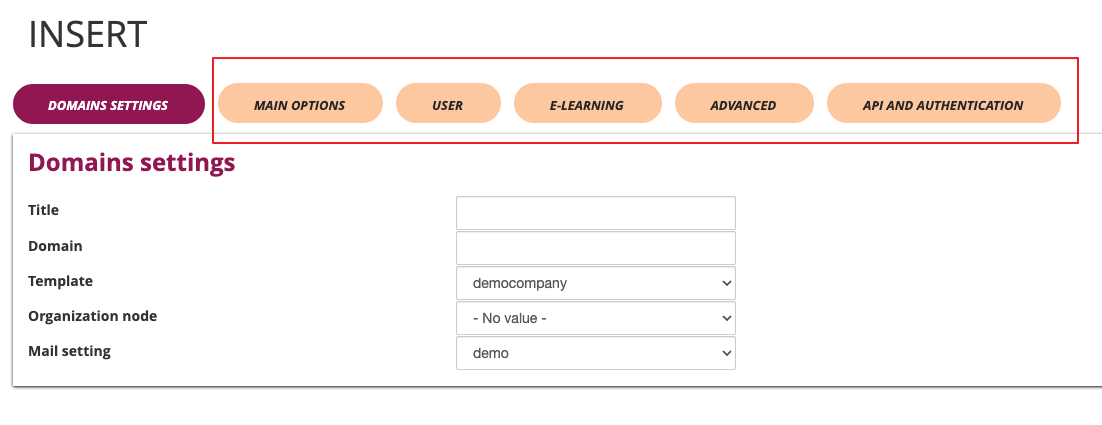
Plugin Configuration
Access to Configuration
The plugin is accessible through the administration panel:
-
Access the administrative panel
-
Navigate to the "System Configuration" section
-
Select "Domain Settings"
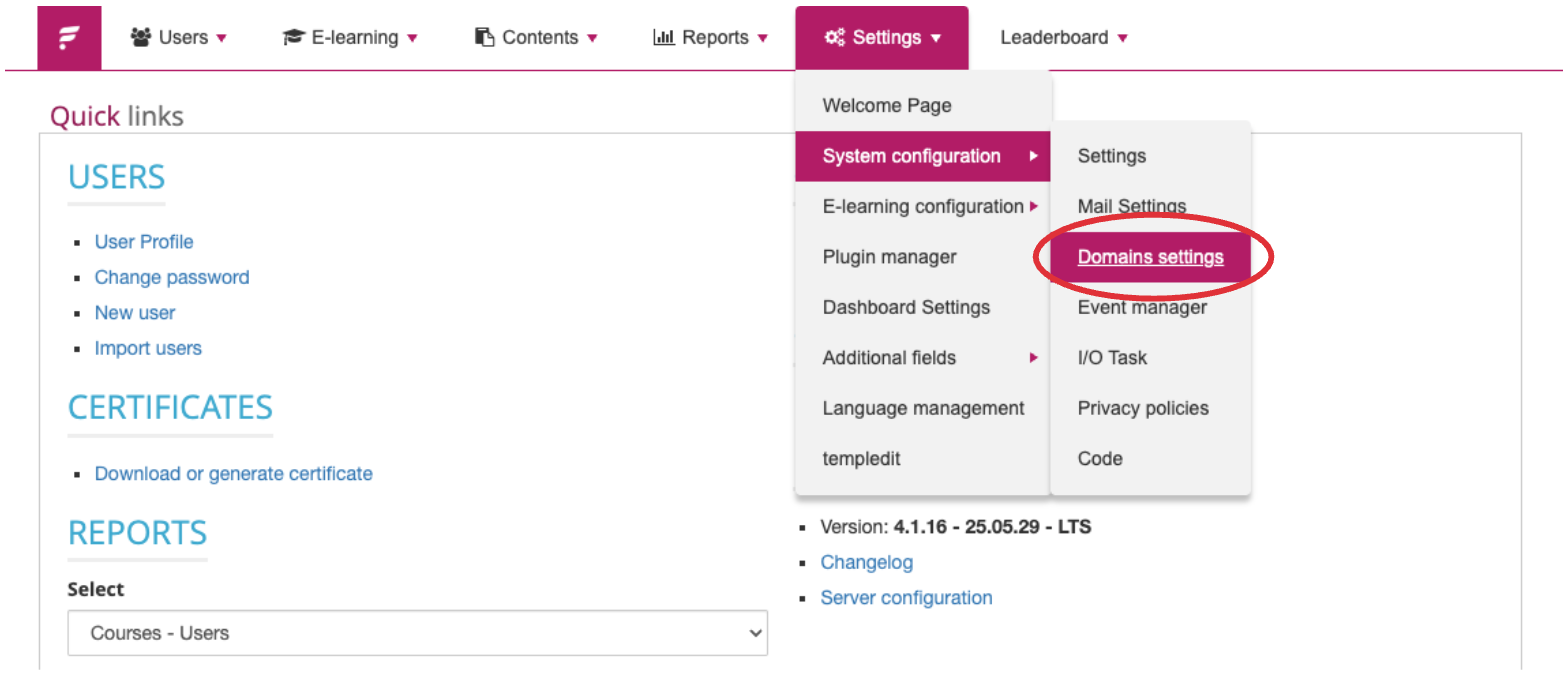
By default domains will inherit the global platform settings, and any configuration change made to a specific domain will override the default ones
Domain Profile Management
Creating New Domain Profile
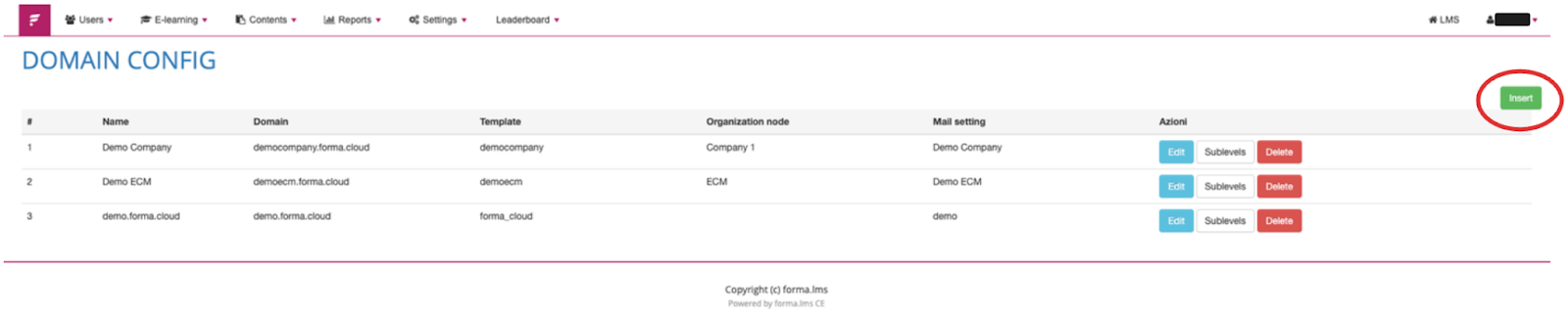
To create a new domain profile:
-
Click on the "Insert" button (green)
-
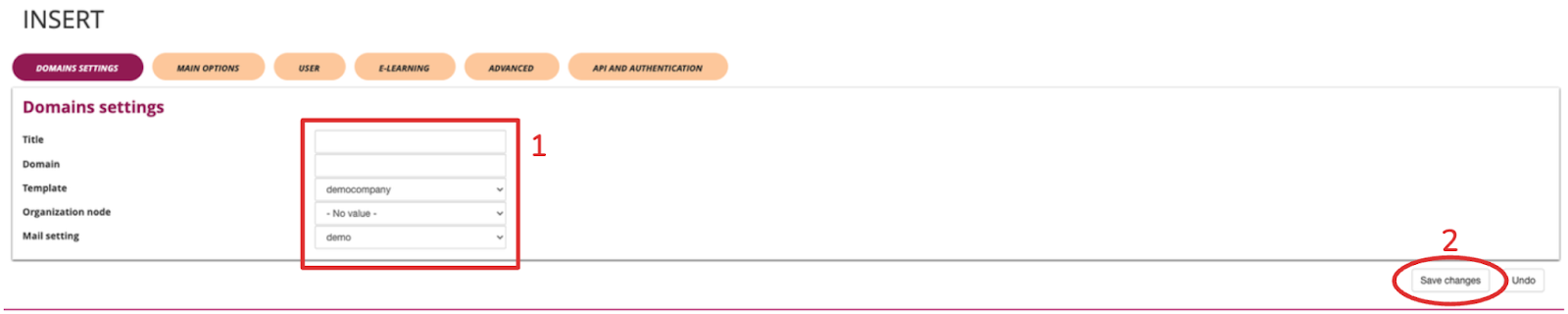
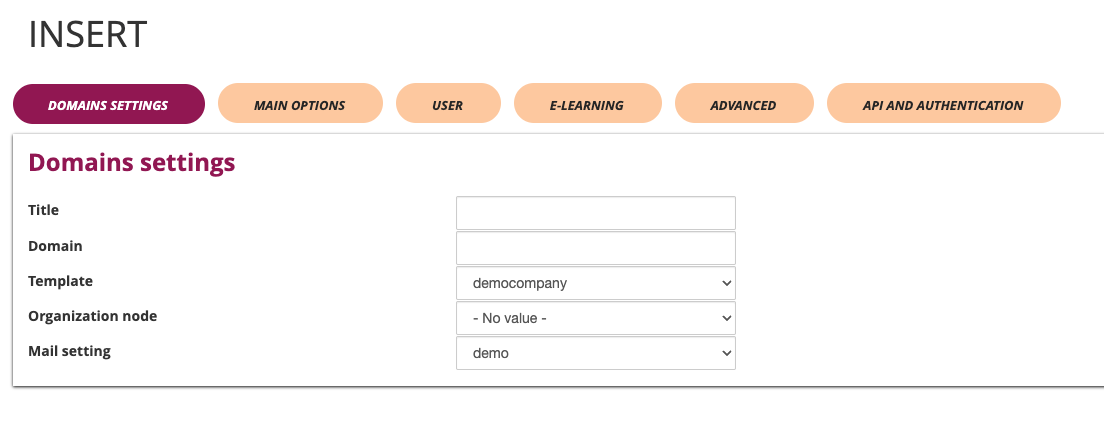
Fill in the required fields:
- Title: Profile identifier
- Domain: Complete domain URL
- Template: Select the appropriate template for this domain
- Organizational node: Associate a specific orgchart node for the users that will self-register to this domain
- Mail Profile: Configure specific email settings for this domain
To add a new domain to your Forma Cloud check our Email & DNS settings documentation
Edit an Existing Domain Profile
To modify an existing profile:
-
Locate the profile in the list
-
Click on the "Edit" button (blue)
-
Update the necessary fields
-
Click "Save changes" to confirm

Profile Deletion
To delete a profile:
-
Locate the profile in the list
-
Click on the "Delete" button (red)
-
Confirm the operation

Advanced Configuration
Domain Settings
Title and Branding
- Title: Platform name customization
- Domain: Main URL configuration
- Template: Graphic layout selection
- Organizational node: Associated hierarchical structure
- Mail Profile: Specific email configuration
Main Options
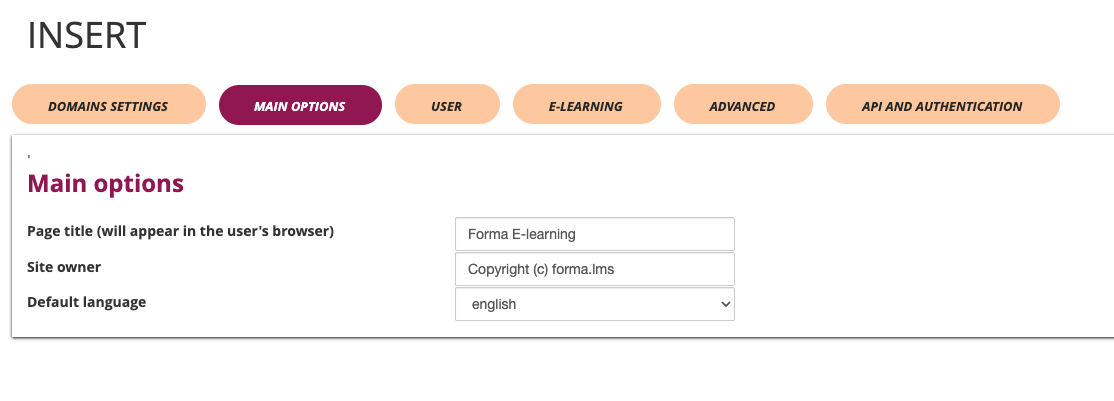
Language and Localization
- Default language: Main language selection (e.g., Italian)
- Page title: Browser title customization
- Site properties: Copyright and property information
User Management
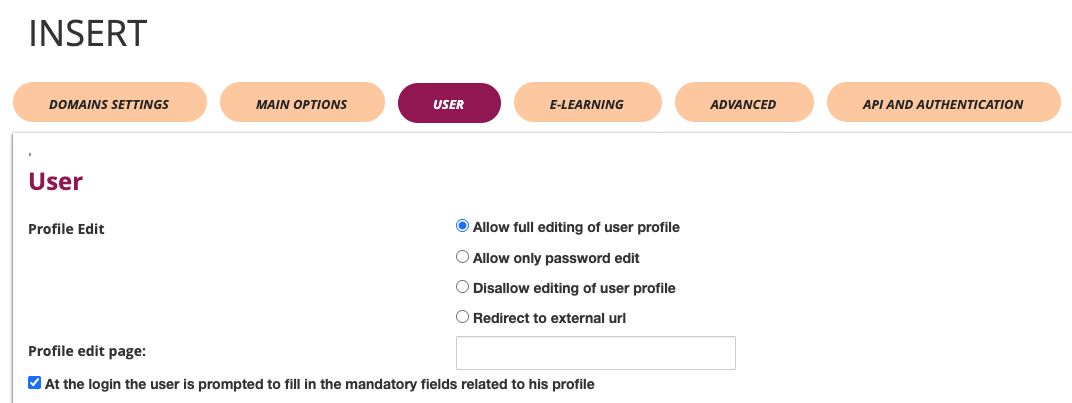
Access Configuration
- Required checkboxes: Definition of mandatory fields for the profile
- Profile edit URL: Configuration path for profile modifications
- Profile edit options:
- Allow complete modification
- Allow only password modification
- Disable profile modifications
- Redirect to external page
Password Management
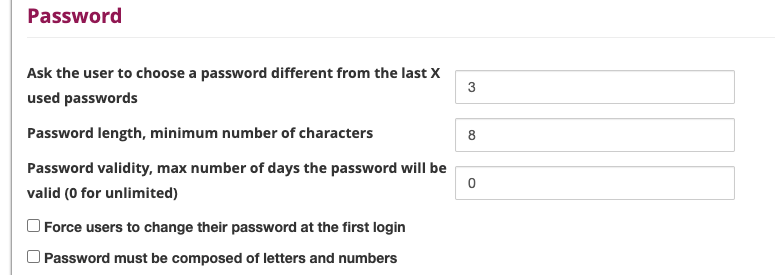
- Password composition: Letters and numbers requirements
- Password history: Number of previous passwords to store
- Minimum length: Required minimum characters
- Password expiration: Days of validity (0 = no expiration)
- Mandatory password change: Force change at first login
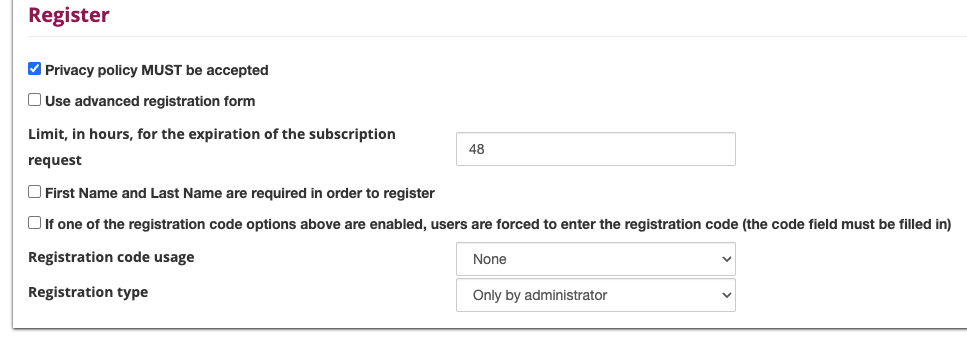
User Registration
- Registration code: Code usage mode
- Required fields: Name and Surname mandatory
- Advanced mode: Use of advanced registration form
- Time limit: Available hours to confirm registration
- Registration type: Access control (Administrators only/Everyone)
- Privacy policy: Mandatory acceptance
- Registration code: Code activation for specific users
E-Learning
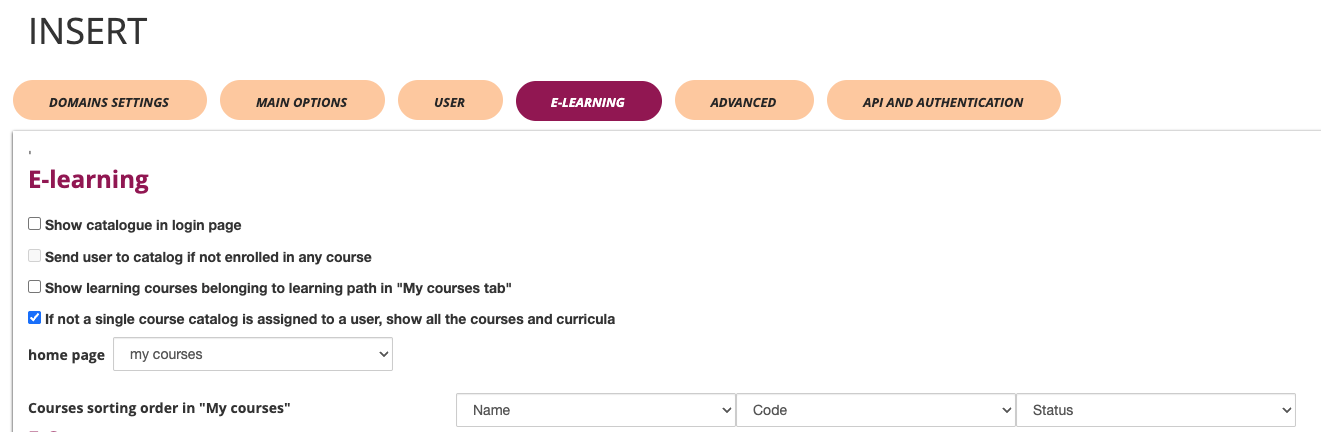
Course Configuration
- Course sorting: Display criteria in "My courses" area
- By Name
- By Company
- By Status
- Home page: Initial page selection (Dashboard)
- Course list: Activation on login page
- Course catalog: Display for unassigned users
- Course path: Display in "My courses" tab
- Redirection: Management of users not enrolled in courses
E-Commerce
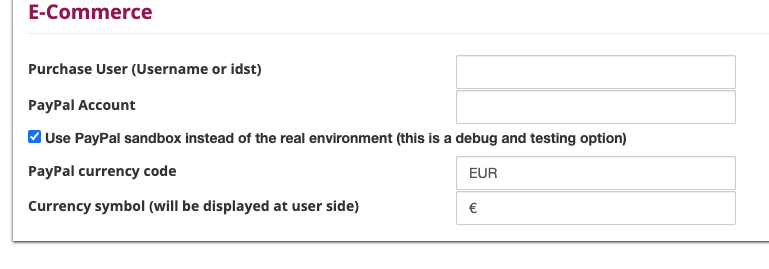
- Purchase notifications: Username or ID configuration for notifications
- Currency symbol: Monetary symbol setting (e.g., €)
- PayPal environment: Sandbox mode for testing or real environment
- PayPal account: Account configuration for payments
- PayPal currency: Currency setting (e.g., EUR)
Advanced Configurations
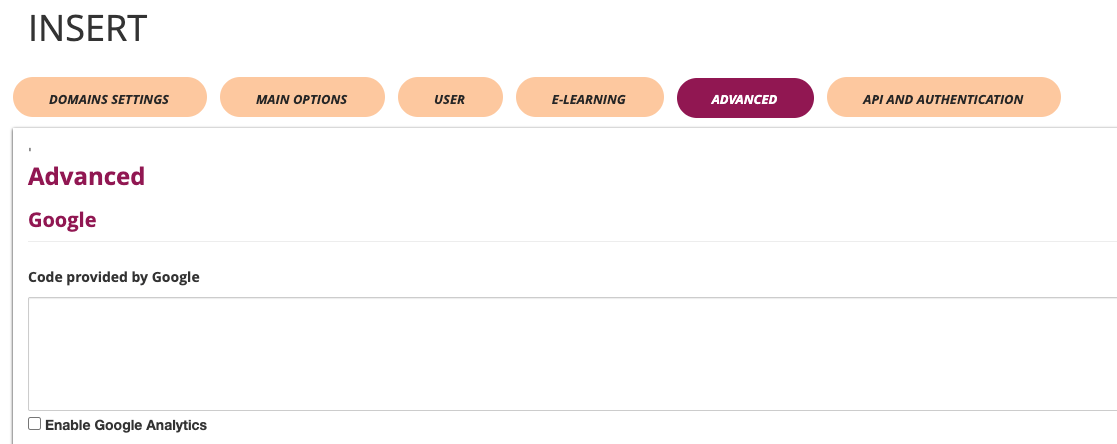
Google Integration
- Google Analytics: Statistics tracking activation
- Google Code: Tracking code insertion
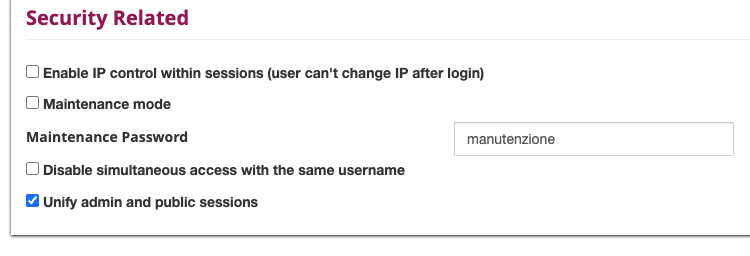
Security Configurations
- Simultaneous access: Disabling multiple access for same username
- IP control: IP consistency activation during session
- Maintenance password: Password setting for maintenance mode
- Site under maintenance: Maintenance mode activation
- Administration session: Public session sharing with administration
API and Authentication
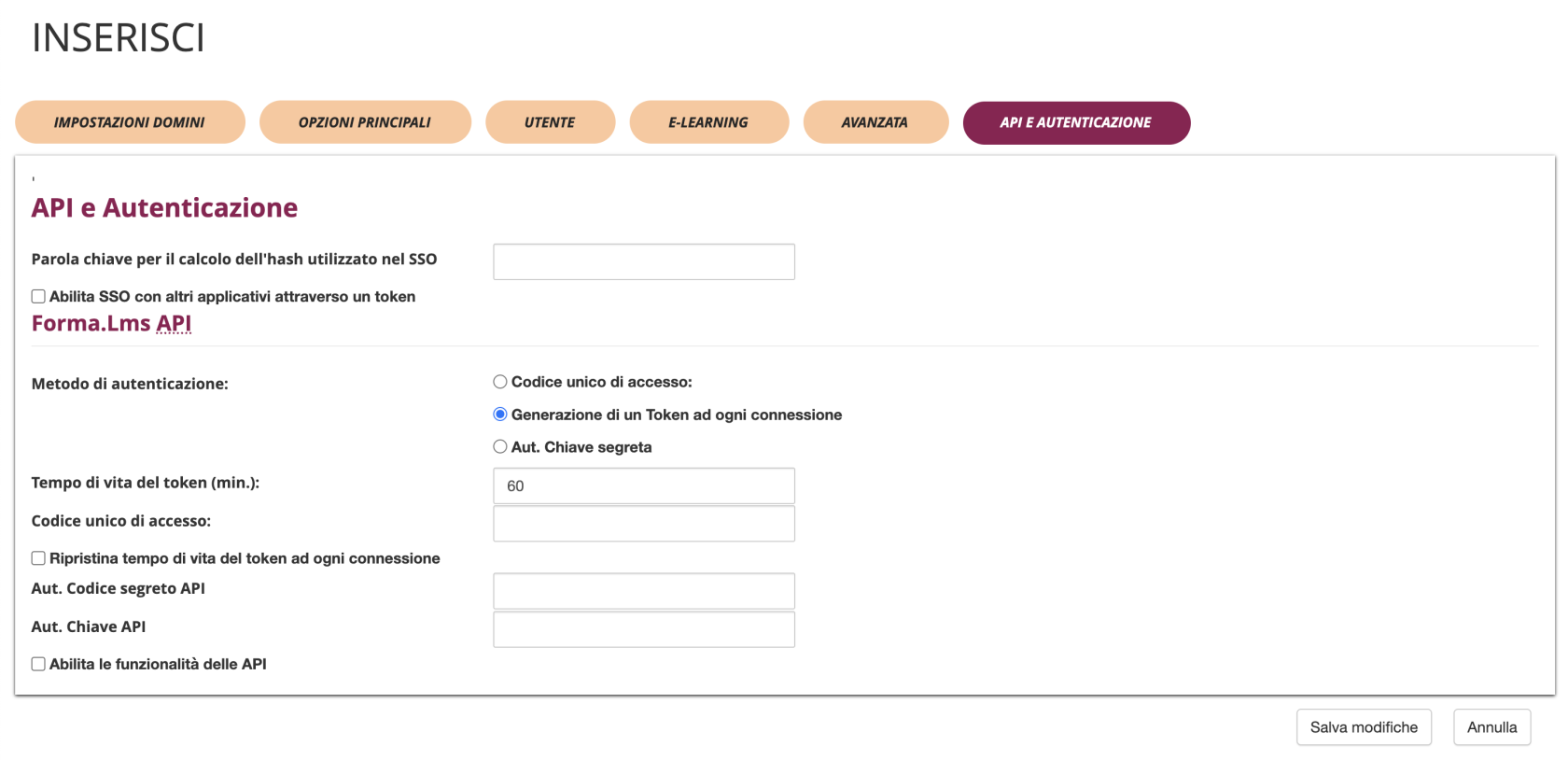
SSO Configuration
- SSO Password Key: Keyword for calculating the hash used in SSO
- Enable SSO with other applications through token: Checkbox to enable SSO functionality with external applications
Forma.LMS API
Authentication Method
The system supports three authentication methods:
- Single Access Code
- Uses a single code for all API access
- Simple but less secure option
- Token Generation on Each Connection (Default)
- Generates a new token for each API session
- More secure as tokens have limited lifespan
- Recommended for production environments
- Secret Key Authentication
- Uses a permanent secret key for authentication
- Balance between security and simplicity
API Configuration Options
- Token Lifetime (minutes): Set the duration for which tokens remain valid (default: 60 minutes)
- Single Access Code: Define a unique code for API access when using single code method
- Reset token lifetime on each connection: Checkbox to refresh token expiration time with each API call
- Secret API Code: Configuration field for secret key authentication
- API Key: Configuration field for API key authentication
- Enable API functionality: Master checkbox to activate all API features for the domain
Best Practices
Naming Convention
- Use descriptive names for profiles (e.g., "PROFILE-1")
- Maintain consistency in nomenclature
- Include client or project references
Template Management
- Use dedicated templates for each client
- Test templates before activation
- Maintain backups of custom templates
Security
- Set complex passwords for maintenance
- Configure IP controls when necessary
- Use sandbox environment for e-commerce testing
Troubleshooting
Domain Not Reachable
- Verify DNS configuration
- Check URL correctness in domain field
- Verify server accessibility
Template Not Displayed
- Check template existence in system
- Verify template file permissions
- Verify correct template-domain association
Email Problems
- Verify mail profile configuration
- Check SMTP parameters
- Test email sending from configured profile