Plugin settings
Template Management
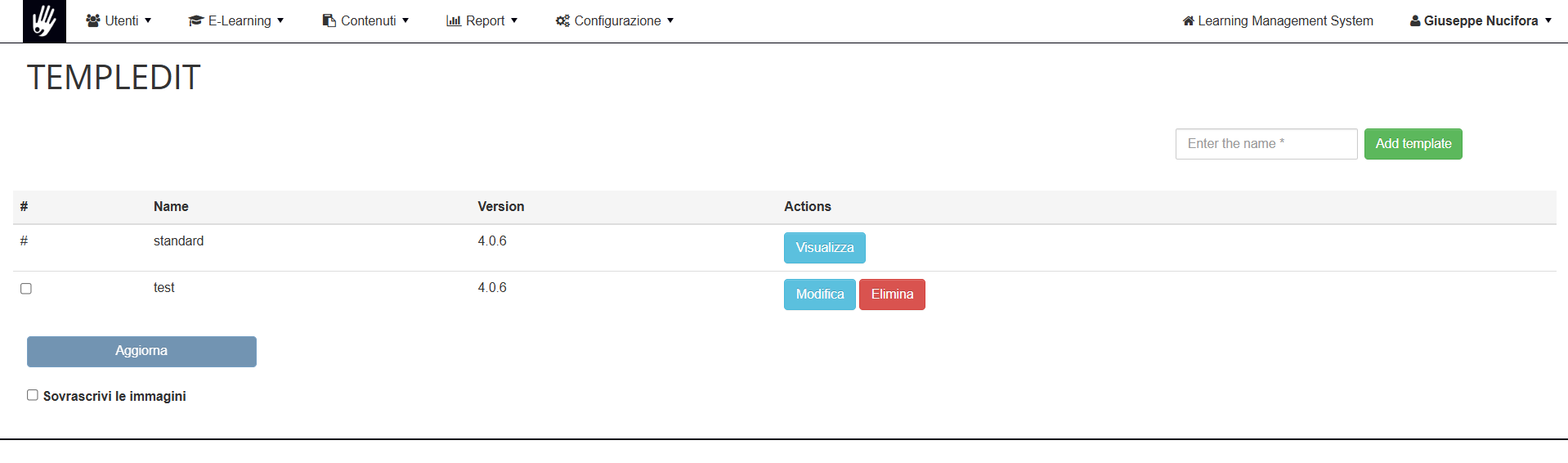
Templedit section is located in Administration (gear wheel) > Configuration > templedit.
From this page you can see a standard template, and you can insert a new template from the "Add template" button or modify an already created template.
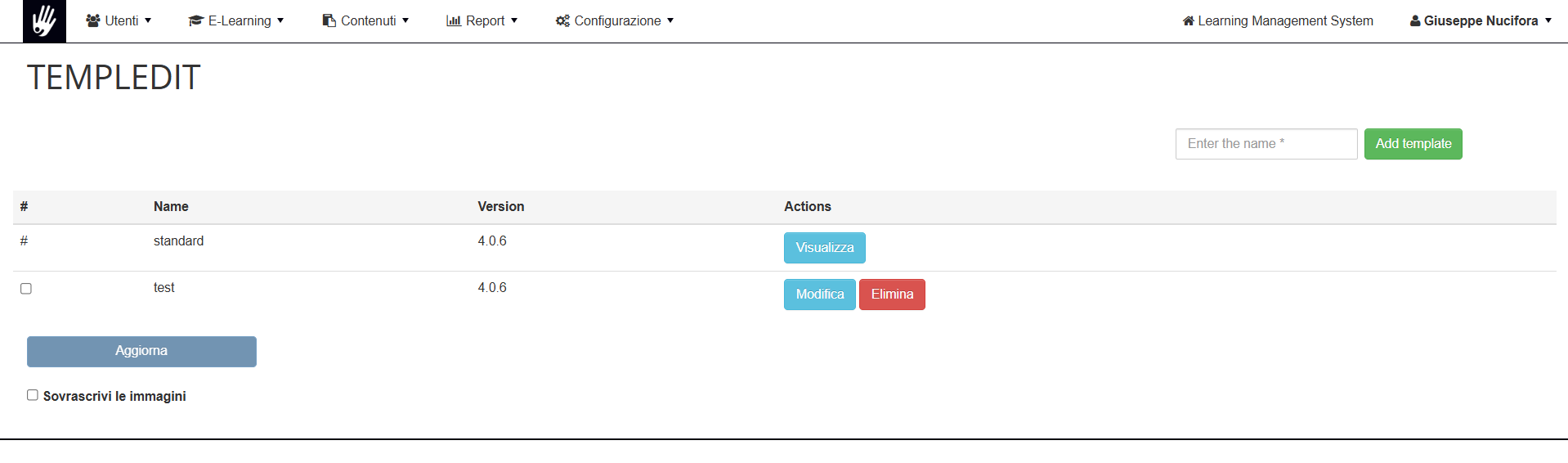
Template Settings
Once created, you can configure your template by clicking on edit, you will then be able to:
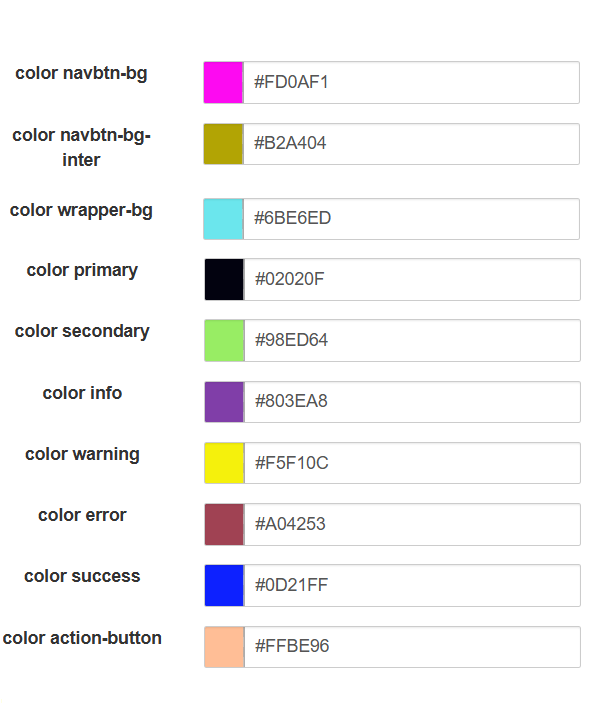
· Set the basic colors of the template
· Upload logo, cover image and favicon
· Edit the custom.css file: all styles in this file will overwrite the standard classes and colors set in templedit.
Note: do not remove the first line @import url('templedit.css'); which is added when you first save the template
Color Legend:
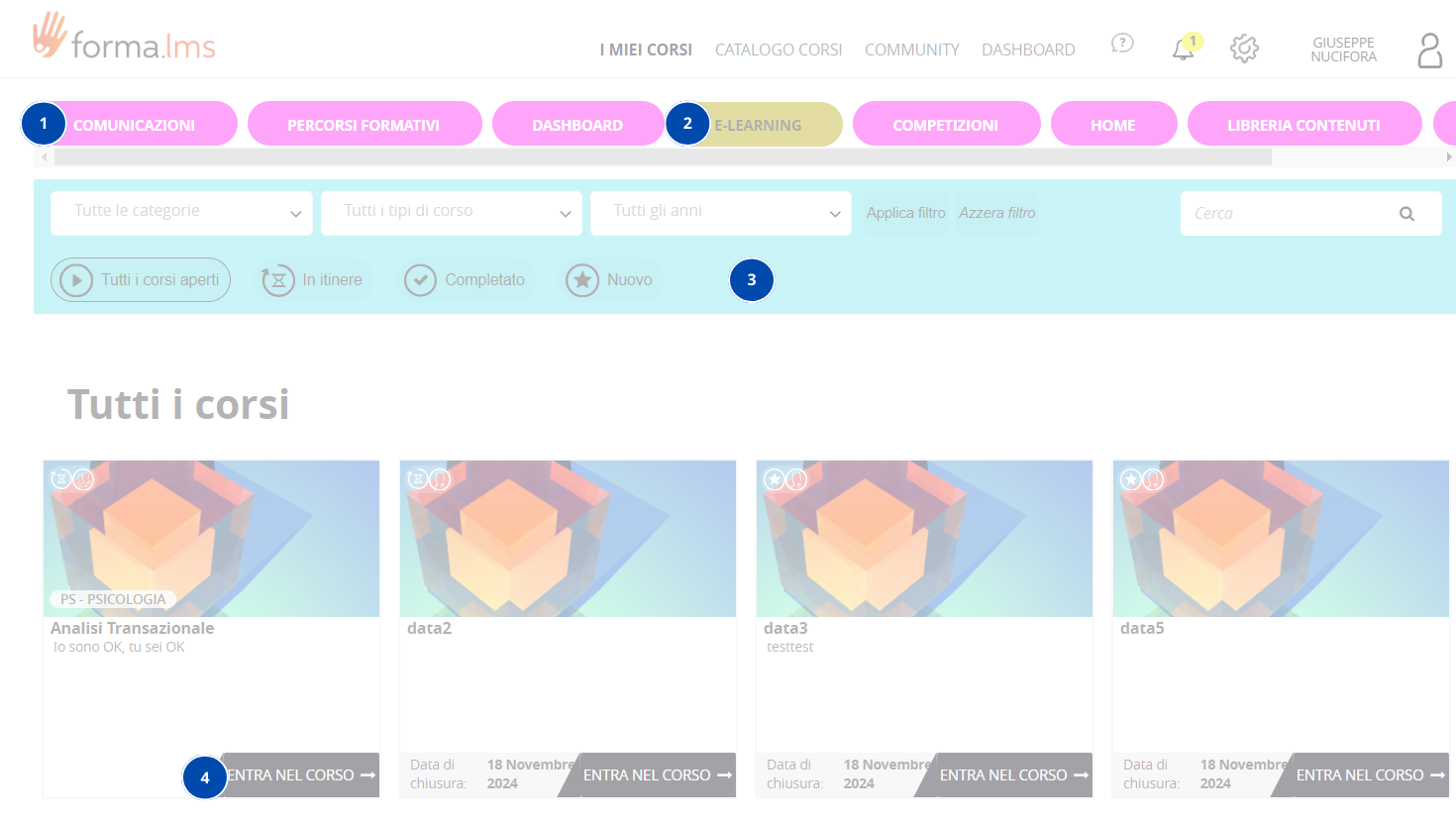
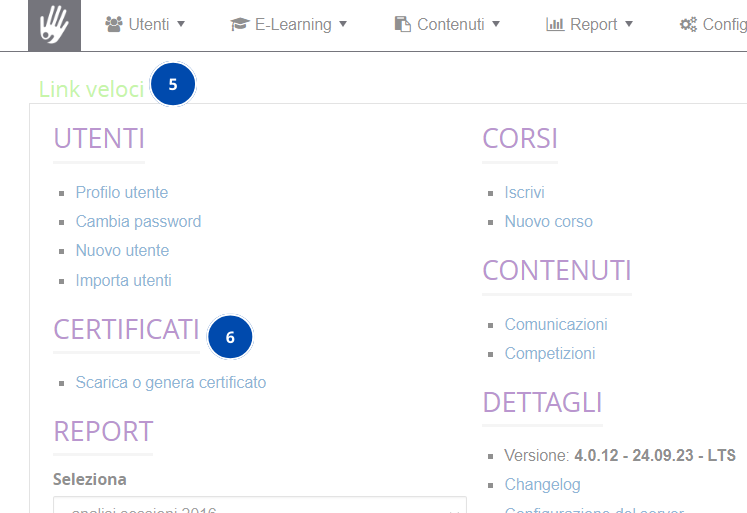
A Below is a small legend of the color entries that can be set to help the user set their own style.
We have set the various fields with different colors to make their display clear.
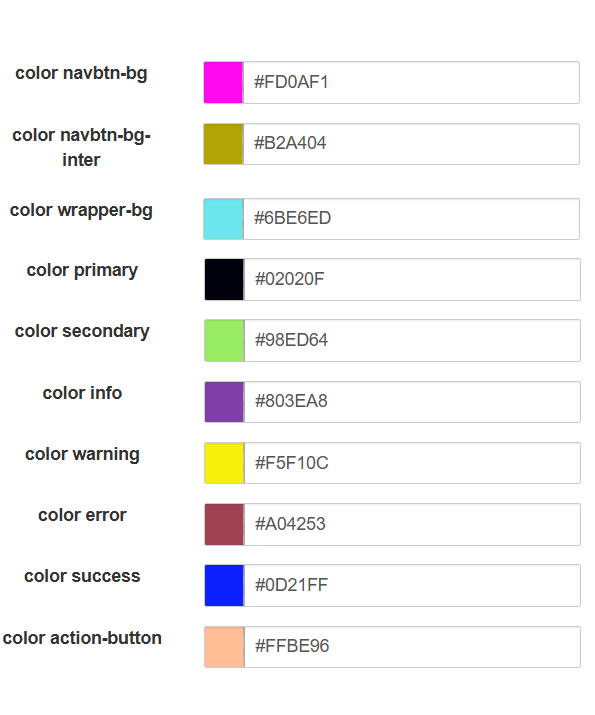
1. color navbtn-bg: indicates the tabs found on the course home page
2. color navbtn-bg-inter: indicates the color of the tabs when they are selected or when you move the mouse over them
3. color wrapper-bg: indicates the background color of the course filter on the home page
4. color primary: indicates the color of the main elements of the model, i.e. titles and texts
5. color secondary: indicates the color of the secondary texts (e.g. section titles on the administration welcome page
6. color info: indicates the color of the texts of the titles of the sub-sections on the administration welcome page
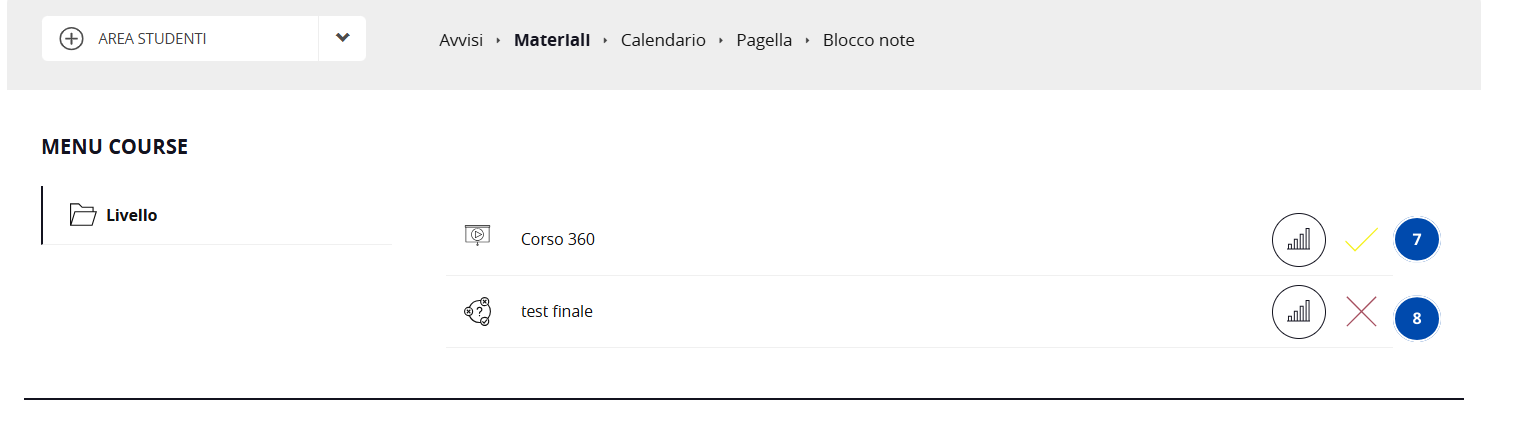
7. color warning: indicates the color of the completion check mark for learning objects, specifically when they have been started and not completed
8. color error: indicates the color of the completion check mark for learning objects, for example when you take a test and fail it
9. color success: indicates the color of the completion check mark for learning objects when they are successfully completed
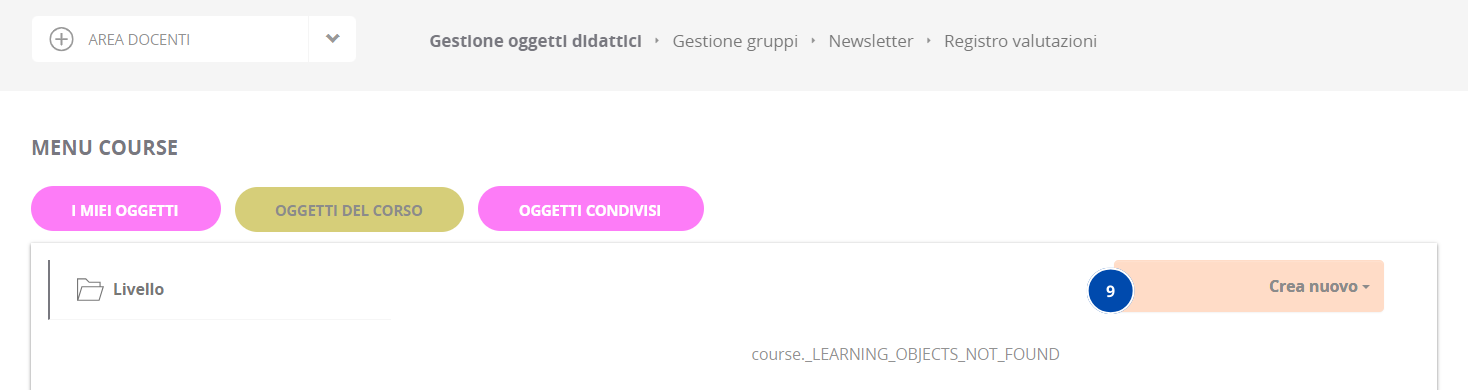
10. color action-button: indicates the color of the 'Create new' button in the course's learning object management to create a new LO
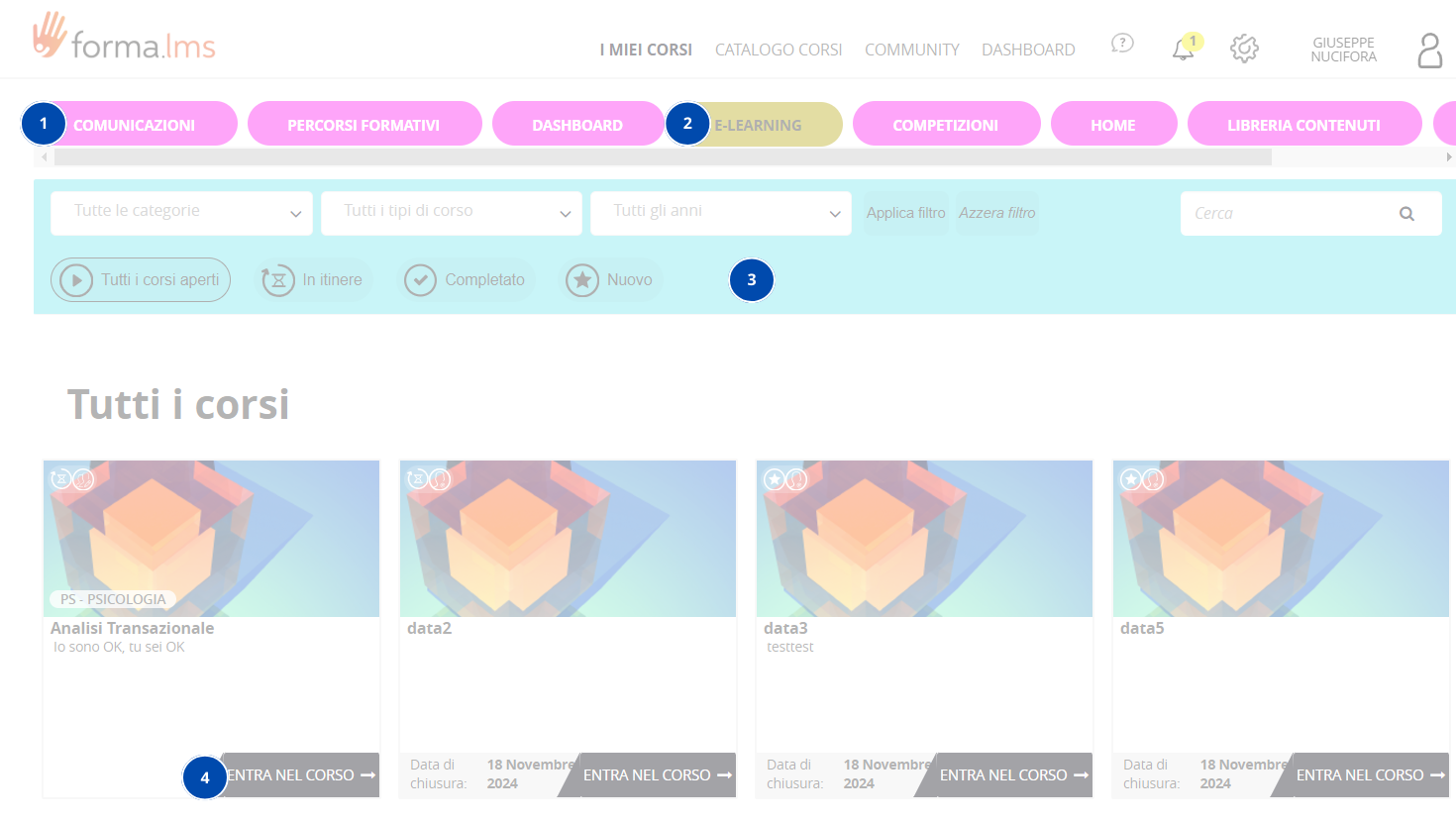
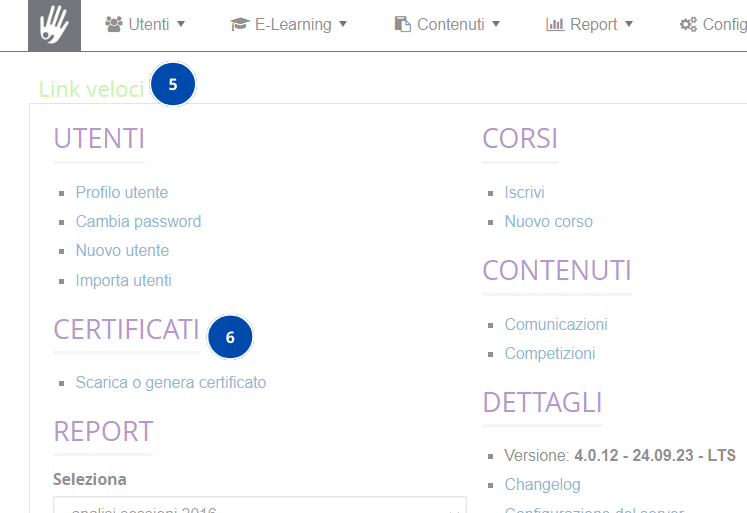
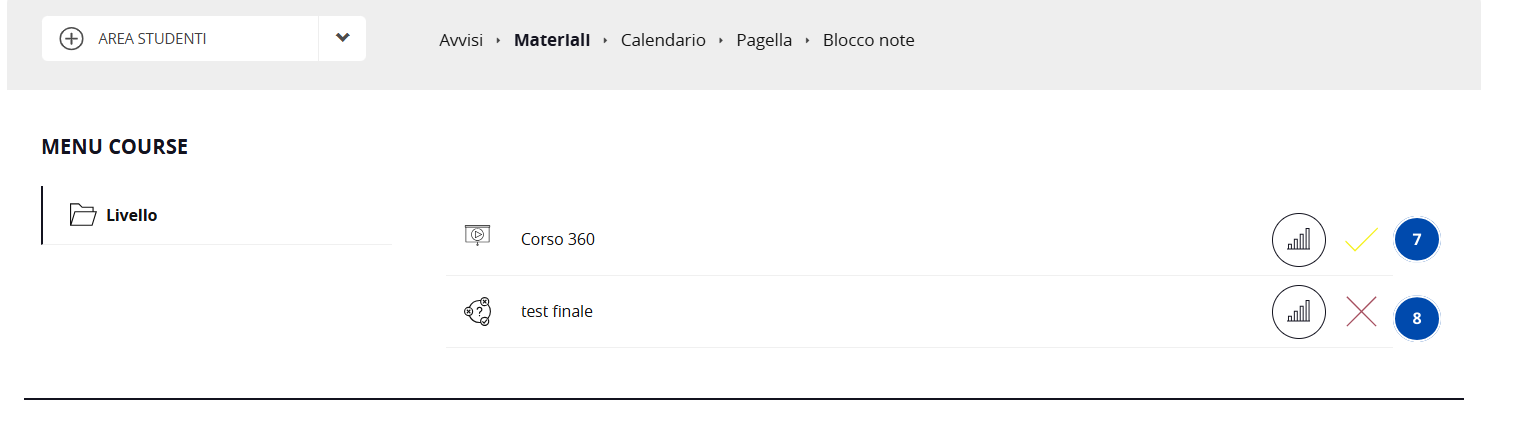
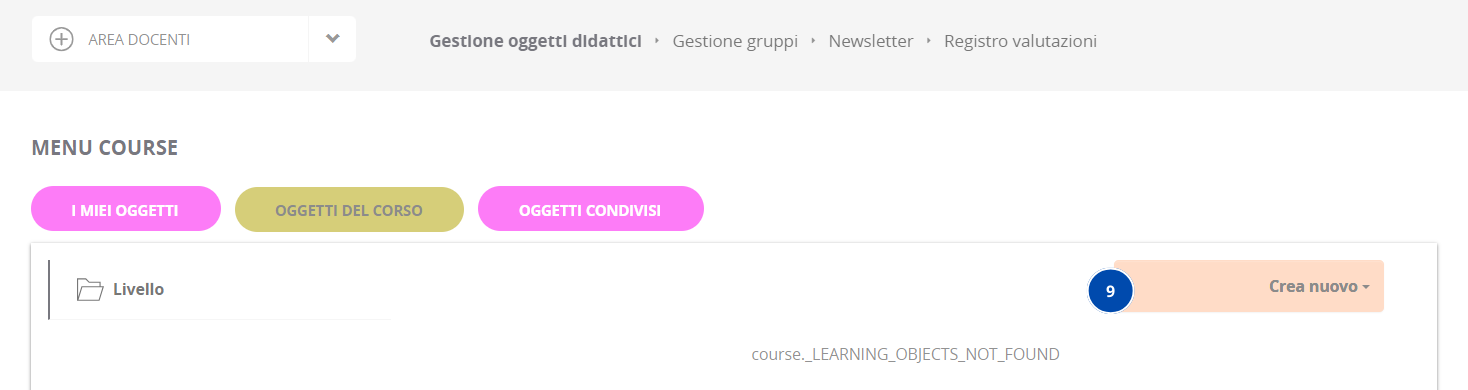
The legend above is intended to guide the user in setting up their own style for the platform, the images used serve as examples and it is possible to find any tabs, banners, etc. in other parts of the platform.