Retraining
Plugin Retraining
Courses that belong to mandatory training, such as all safety-related courses, have an expiry date. After that date, participants are required to complete the course again. Managing this process can be quite complex, but the Retraining plugin makes it simple and automated.
1. Sets the course validity period
2. Automatically checks conditions the validity of a course for each user has expired or is about to expire
3. Resets the user’s status on the course
4. Sends a reminder to users X days before the expiry date
5. Maintains the certificate history
1. How to set the validity days of a course
Go to Administration/Elearning/Courses
and click the Edit icon for the course in which you want to set the validity days

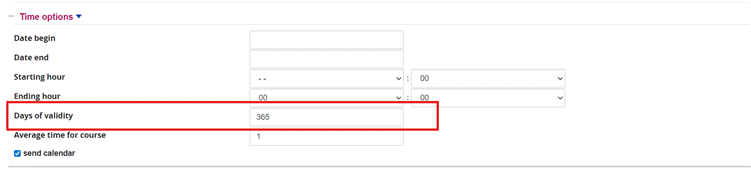
In the “Time Options” section, enter the number of validity days. For example, if a course is valid for one year, enter 365.
2. How to check course validity for each user from the reports.
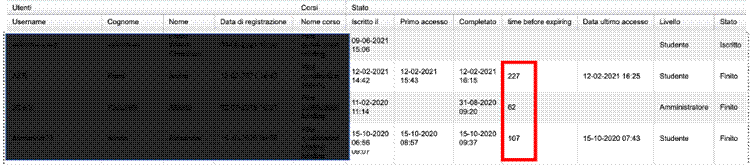
When creating a report, simply add the “time before expiring” field
to the fields to be displayed in the table.
In the newly created report, a column will appear showing the days remaining until course expiry for each user
3. How to reset the user’s status
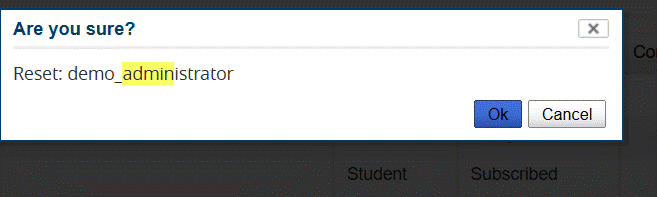
When a user needs to retake the course, the administrator can manually reset their status by clicking the appropriate icon.
Go to Administration/Elearning/Courses
and click the enrolled users icon for the course whose users’ status you want to reset.
Click the “Reset” icon 
When the pop-up opens, click the OK button
4. How to send a reminder to users X days before the course expiry date
Retraining integrates with Course Alert to notify users by adding a dedicated reminder:
Enabling notifications:
The configuration panel of Course Alert (and the specific integration for Retraining) allows you to precisely define how, when and how many times a user should be prompted.
A. Selecting the Sending Mode
For each type of reminder (e.g. "Certificate validity reminder"), the administrator can choose one or both channels:
· E-mail: Sends a message to the user's email inbox.
· Pop-up: Activates a blocking alert within the platform at the time of login.
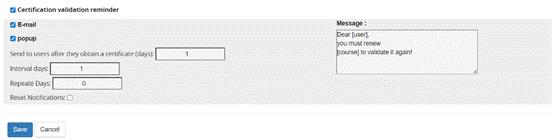
Defining Scheduling Fields
The numeric fields determine the notification lifecycle:
● Send to users after X days: Defines the timing of the first send relative to the triggering event (e.g. after receiving a certificate or after enrolment).
● Interval days: Specifies how much time must pass between one send (or pop-up display) and the next. This avoids overwhelming the user if they do not act immediately.
● Repetition days (or Number of repetitions): Indicates how many times the system should re-present the alert.
Technical note: Setting this value to 0, the system will perform an infinite send until the user completes the required actiona.
● Reset Notifications: If checked, allows the send cycle to be re-initialised for users who have already received reminders previously.
Pop-up Notification
The introduction of the pop-up system transforms a simple passive notification (email) into a guided and immediate action. This feature is designed to maximise the renewal rate of expiring courses.
Display (Entry Phase):
- · Trigger Event: The pop-up appears immediately after the user’s Login on the platform.
- · Frequency: If the user does not complete the required action, the pop-up will reappear on subsequent logins based on the "Interval days" and "Number of repetitions" settings configured in the Course Alert panel
Dynamic Interaction (Selection Phase)
Once the pop-up is displayed (e.g. "Certificate validity reminder"), the user has two main options: 
By clicking "Retake the course",
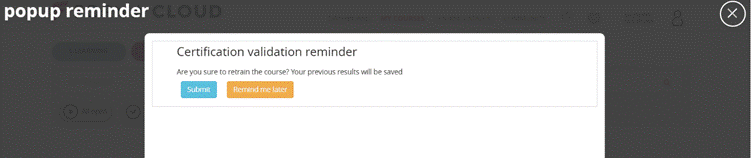
- · Warning Message: A second confirmation level appears: "Do you confirm you want to retake the course? Your previous results will be saved". This reassures the user that their certificate history will be preserved.
- · Automatic Reset: Upon clicking "Confirm", the plugin resets the user's completion status on the specific course.
Once confirmed, the pop-up displays the final button:
Advantage: The user goes from login to course access in just 3 clicks.
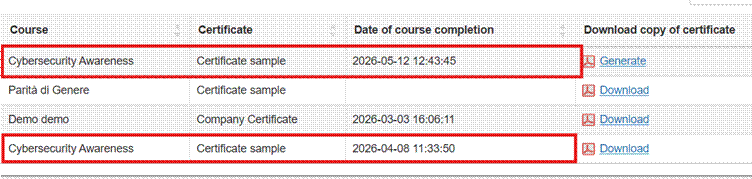
5. Certificate History
Each user, in their own Certificate Area, will be able to generate and download all certificates obtained upon course completion (even when the previous year’s completion status has been reset)